Run smartPOS Cloud even when the internet doesn't.
The desktop app keeps taking sales, tracking stock, and printing receipts on-device through an outage, then syncs to the cloud the moment your connection returns.
Not on Windows? See Mac (Apple Silicon) or Mac (Intel).
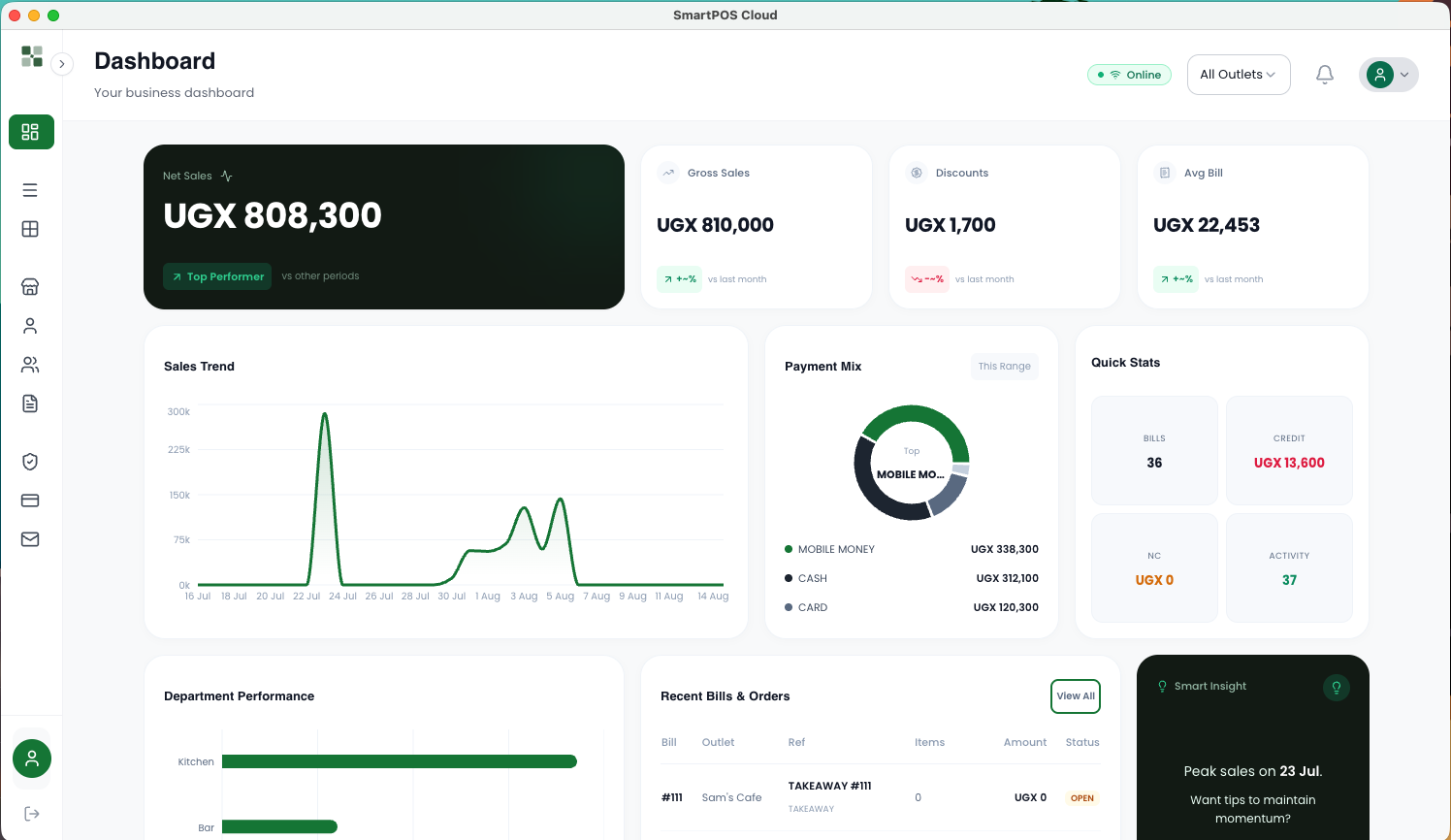
Downloads
Every download, right here
Same exact installers, three platforms - pick yours.
Why install it
The desktop app earns its place on your device
- Keeps taking sales, updating inventory, and printing receipts on-device during an internet outage - nothing waits on a network round-trip.
- Syncs automatically to the cloud the moment your connection returns, in the order it happened.
- Runs as its own application - no browser tab to keep open, and no risk of an accidental page refresh interrupting a sale.
Getting started
From download to your first sale
01
Download the installer
Pick Windows or Mac above - the file saves to your browser's downloads folder.
02
Run the installer
Windows: Open the downloaded .exe and follow the setup wizard.
Mac: Open the downloaded .dmg and drag smartPOS Cloud into Applications.
03
Sign in
Launch smartPOS Cloud and sign in with your existing account - the same one you use on the web.
04
Start selling, online or off
Take sales, manage inventory, and print receipts locally. Everything syncs to the cloud automatically once you're back online.
Getting past the first-run warning
smartPOS Cloud's desktop installer isn't code-signed yet, so Windows and macOS show a standard warning the first time you open it. That's normal for independent business software - here's how to continue.
FAQ
Desktop app questions
Ready to see it in action?
Book a demo and see your operations keep running - connection or not.